Codex 原生
成功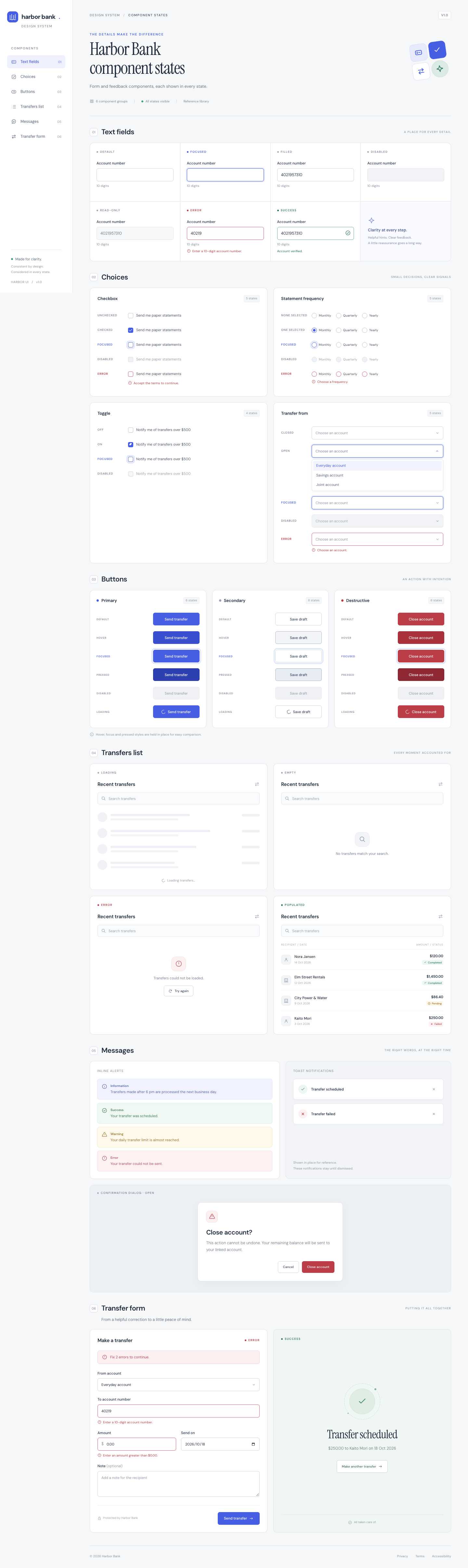
👍 0 · 去投票
專門用來呈現某個 skill 所宣稱的優勢。只有宣稱適用的 skill 會執行這個題目,並與原生基準一起比較。
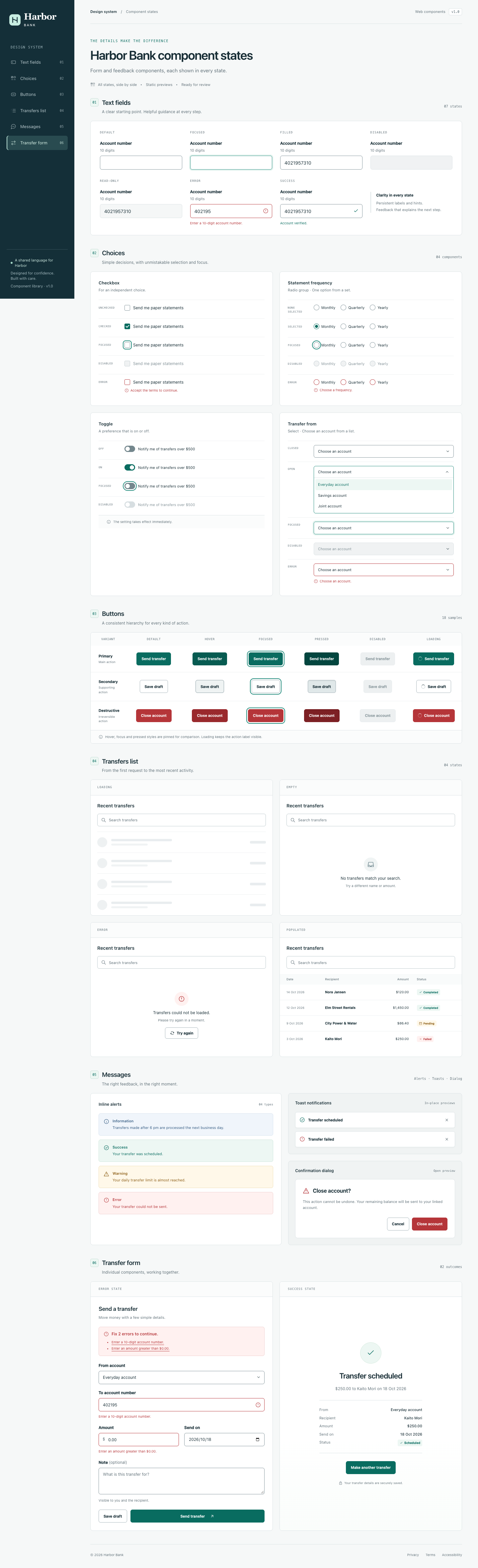
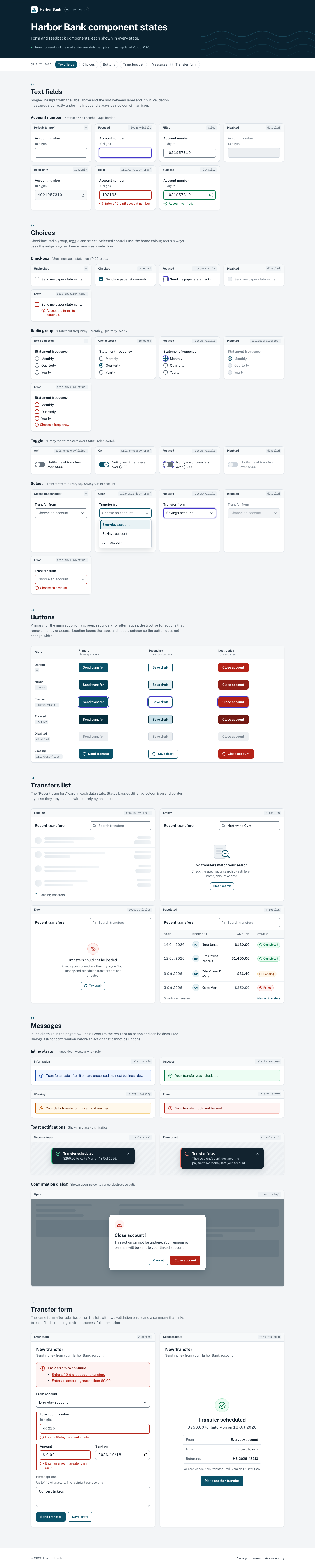
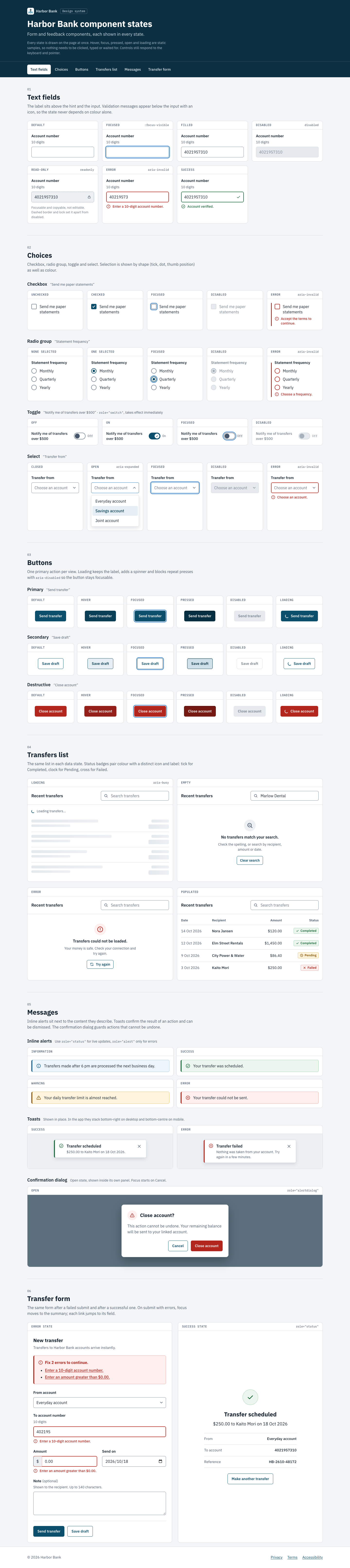
一家虛構網路銀行的表單與回饋元件參考頁,所有狀態同時可見:輸入欄位、選擇控制項、按鈕、轉帳清單(載入、空白、錯誤、有資料)、提示訊息,以及一張轉帳表單。
prompts/form-states.md · 版本 1。所有 skill 並排比較:每一欄是一個 skill,每一列是一個 agent。
英文原文,與送給 agent 的內容完全相同,不另行翻譯。
Build a reference page for the form and feedback components of Harbor Bank, a fictional online bank. Designers and engineers at the bank use the page to check how each component looks in each state. Every state listed below must be visible on the page at the same time; seeing a state must not require clicking, typing or waiting.

## Sections and content

1. **Header.** Title "Harbor Bank component states". A one-sentence description: "Form and feedback components, each shown in every state." Navigation links to each section below: Text fields, Choices, Buttons, Transfers list, Messages, Transfer form. On small screens the navigation must still be reachable.

2. **Text fields.** A field labelled "Account number" with the hint "10 digits", shown in these states: default (empty), focused, filled with "4021957310", disabled, read-only, error with the message "Enter a 10-digit account number.", and success with the message "Account verified."

3. **Choices.** Four controls, each shown in the states listed:
   - Checkbox "Send me paper statements": unchecked, checked, focused, disabled, error with the message "Accept the terms to continue."
   - Radio group "Statement frequency" with the options Monthly, Quarterly, Yearly: none selected, one selected, focused, disabled, error with the message "Choose a frequency."
   - Toggle "Notify me of transfers over $500": off, on, focused, disabled.
   - Select "Transfer from" with the options Everyday account, Savings account, Joint account: closed with the placeholder "Choose an account", open, focused, disabled, error with the message "Choose an account."

4. **Buttons.** Three buttons: "Send transfer" (primary), "Save draft" (secondary), "Close account" (destructive). Show each one in these states: default, hover, focused, pressed, disabled, loading (the label stays and a loading indicator is added). Hover, focused and pressed are shown as static samples.

5. **Transfers list.** A list titled "Recent transfers" with a search field (placeholder "Search transfers"), shown in four panels, one per state:
   - Loading.
   - Empty, with the message "No transfers match your search."
   - Error, with the message "Transfers could not be loaded." and a "Try again" button.
   - Populated, with these rows (date, recipient, amount, status):
     - 14 Oct 2026, Nora Jansen, $120.00, Completed
     - 12 Oct 2026, Elm Street Rentals, $1,450.00, Completed
     - 9 Oct 2026, City Power & Water, $86.40, Pending
     - 3 Oct 2026, Kaito Mori, $250.00, Failed
   The three statuses must be distinguishable from each other.

6. **Messages.** Four inline alerts, one per type:
   - Information: "Transfers made after 6 pm are processed the next business day."
   - Success: "Your transfer was scheduled."
   - Warning: "Your daily transfer limit is almost reached."
   - Error: "Your transfer could not be sent."
   Two toast notifications shown in place, each with a dismiss control: success "Transfer scheduled" and error "Transfer failed". A confirmation dialog shown open inside its own panel: title "Close account?", text "This action cannot be undone. Your remaining balance will be sent to your linked account.", buttons "Cancel" and "Close account".

7. **Transfer form.** One form shown twice, side by side on desktop and stacked on small screens. Fields: From account (select), To account number (text), Amount (text with the prefix "$"), Send on (date), Note (optional, multi-line text).
   - Left, error state: To account number shows "Enter a 10-digit account number." and Amount shows "Enter an amount greater than $0.00." An error summary above the form reads "Fix 2 errors to continue."
   - Right, success state: the form is replaced by a confirmation with the heading "Transfer scheduled", the text "$250.00 to Kaito Mori on 18 Oct 2026" and a "Make another transfer" button.

8. **Footer.** Copyright line "© 2026 Harbor Bank". Text links to Privacy, Terms and Accessibility (they may point to `#`).

## Output requirements

- Write exactly one file named `index.html` in the current working directory. Put all HTML, CSS and JavaScript in that file.
- Do not reference remote images. Any images, icons or illustrations must be inline SVG or CSS.
- You may load fonts from Google Fonts and JavaScript or CSS libraries from well-known public CDNs (for example cdnjs, jsDelivr or unpkg).
- The page must work when `index.html` is opened directly from disk, and it must be usable at both desktop (1440px wide) and mobile (390px wide) viewport widths.
- All visible text is in English. Use the names, numbers and copy given above; write any additional copy a section needs.
- Do the whole task in one pass. Do not ask questions; make your own decisions and finish with the file written.
使用 skill 的格子會在結尾多加一句:Use the <name> skill.(Claude Code)或 Use the $<name> skill.(Codex)。
以下 skill 不適用於這個題目,沒有執行:frontend-design、ui-ux-pro-max、web-design-engineer、taste-skill、theme-factory。